Last updated: October 21, 2026
Quick Answer: Use one cloud storage account, one master folder, and one naming rule to keep remote work files organized.
Key Takeaways
- Start with one cloud account, one main folder, and one naming rule before moving files.
- Gather files in one place, sort them by purpose, rename active items, and back them up weekly.
- Use a small folder structure that matches how the work actually gets done.
- Name work files with date, subject, document type, and version so they sort cleanly.
Remote work gets much easier when the topic of How Seniors Can Organize Digital Files for Remote Work is handled with one digital file system used the same way every day, so you always know where a document lives, what version is current, and where to find a PDF in less than a minute. A clean digital file system gives each work file one home, one name, and one backup path. That matters even more for seniors who may be juggling a new job, larger screen settings, and shared folders in Google Drive, Dropbox, or OneDrive.
This guide focuses on the practical part: folders, file names, version control, cloud storage, and backups. It is not about learning every app on the market. If the goal is to reduce confusion, lost documents, and repeated work, this is the right place to start.
What should a senior set up first for a digital file system?
A senior should start with one main cloud storage account, one master work folder, and a simple naming rule before moving any files. That first setup can help prevent the mess of half-sorted files that often happens when people organize as they go, and a workplace IT or productivity professional can also help with account-specific settings. According to a Microsoft support overview of OneDrive version history and Google Drive help on file organization, starting with one primary storage location makes sharing and version tracking easier.
Begin with the storage place you already use most often for work. If your employer uses Google Drive, that is usually the cleanest choice. If your team uses Microsoft 365, OneDrive is often the natural fit. Dropbox works well when file sharing is the priority. Pick one primary home for work files instead of scattering documents across all three. Mixing them creates duplicate copies and makes version control harder.
Then make one top-level folder with a plain name such as Work or Remote Work. Under that, create only a few subfolders at first. A simple starter structure might be:
01_Admin02_Current Projects03_Reference04_Completed05_Forms and PDFs
The numbers are not required, but they keep the folders in the same order on Windows, macOS, and most cloud apps. That small detail saves time when folders sort alphabetically.
After that, make one rule for file names. A useful pattern is:
YYYY-MM-DD_ClientOrProject_DocumentType_V01
Example:
2026-10-21_AcmeInvoice_PDF_V01
That format works because it tells you the date, the project, the file type, and whether it is a draft or final copy. It also sorts well by date. If a file name still makes sense six months later, the system is working.
The result you want is simple: you can open your main folder and know where to put a new file without thinking for 10 minutes.
How do I organize digital files for remote work step by step?
You organize digital files for remote work by collecting everything in one place, sorting by purpose, renaming active files, and setting a backup routine that you can repeat weekly. The steps below are meant to be done in order, not all at once.
- Gather every work file into one temporary folder named
InboxorTo Sort. Put it inside your main cloud storage folder so it syncs automatically. When this step works, all current work files are visible in one place instead of scattered across Desktop, Downloads, email, and USB drives. - Split the files into 4 to 6 main folders by function, not by mood. Use labels such as
Admin,Projects,Clients,Reference, andArchive. A useful test is whether you can decide where a new file belongs in under 10 seconds. - Rename the files you use often with a fixed pattern. Keep the name short enough to read on a laptop screen, but specific enough to identify the file without opening it. For example:
2026-10-21_MeetingNotes_Final.docx. When this works, the file list reads like a set of labels, not a pile of mystery titles such as “scan0007” or “new version final final.” - Move PDFs into a dedicated folder if you handle a lot of forms, statements, or signed documents. A folder named
PDFsorSigned Formskeeps the file type obvious. This matters because PDF files are often the final copy, not the working draft. - Use version control for documents you edit more than once. Keep the working file in the main folder and save only meaningful versions, such as
V01,V02, orFinal. Do not save a new file for every tiny change. If version control is working, you can answer the question “Which one should I send?” without opening five copies. - Set a weekly backup habit. Once a week, check that your cloud storage sync is current and that important files exist in a second place, such as an external drive or a second backup folder. If the backup is working, you can see recent dates and complete copies, not a half-finished sync from last Tuesday.
A system like this can help prevent duplicate files and lost files, though a workplace support specialist can advise if your company has special rules. It also saves time on the second and third week, when you would otherwise repeat the same search. According to the U.S. Small Business Administration, routine backups are a standard safeguard for digital records.
What folder structure works best for remote work?

The best folder structure for remote work is usually a small, predictable one that mirrors how the work is actually done. A structure with 3 to 6 levels is usually enough; deeper nests often become hard to remember and even harder to navigate. Google Drive and Dropbox both document simple nested folder use, and the U.S. National Archives recommends keeping records in a clear, logical order.
The simplest useful structure is top-level by function, then by project or date. For example:
WorkAdminClientsCurrent ProjectsReferenceArchive
Inside Current Projects, keep one folder per project. Inside each project, use the same 4-part pattern every time:
01_Brief02_Working Files03_Reviews04_Final
That arrangement helps because remote work often means switching between tasks fast. A person should not have to remember whether a file belongs in “Project A,” “Project A new,” or “Project A 2026.” One project, one home, one final folder is easier to maintain.
If you receive shared files from a team, keep them in a separate folder named Incoming or Shared. Do not drag team files into personal folders unless you are sure they are yours to keep. That reduces accidental edits and makes it easier to return to the source version in Google Drive, Dropbox, or OneDrive.
A common mistake is making the folder tree too clever. A folder named Important Stuff or Stuff to Do Later may feel flexible, but it creates work later because nothing belongs there by rule. Another mistake is building one folder for every day of the year. A daily folder structure can help some jobs, but for most remote workers it becomes clutter after a few weeks. A structure based on work type holds up better over time.
If the system is right, you should be able to place a new file without asking, “Where did I put this last time?” That is the real test.
How should I name work files so they are easy to find?
Work files should be named with date, subject, document type, and version so they sort well and make sense months later. A clear file name is faster than any search box when you are under deadline.
A strong naming pattern looks like this:
YYYY-MM-DD_Subject_DocumentType_V01
Examples:
2026-10-21_Budget_Notes_V012026-10-21_ClientA_Invoice_PDF2026-10-21_TrainingChecklist_Final
The year-month-day order matters because it sorts correctly in most file lists. If you start with the month or the word “final,” the files get messy as soon as more than a few versions exist.
Keep these rules in mind:
- Use underscores or hyphens, not spaces if your system tends to mangle file names.
- Avoid special characters like
#,&, and/unless your workplace standard uses them. - Keep names short enough to read in a narrow column.
- Use
Finalonly once, when the file is ready to send. - Use
DraftorV01,V02,V03while editing.
PDF files deserve the same discipline. A scanned form called scan.pdf is a dead end. A file called 2026-10-21_LeaseExtension_Signed.pdf tells you exactly what it is and whether it is the signed version.
This is one of the few parts of file organization where consistency matters more than creativity. A name that looks boring is usually the one that works.
How do cloud storage, backups, and version control fit together?
Cloud storage, backups, and version control work best as three separate jobs, not one vague safety net. Cloud storage keeps files available across devices, version control keeps edits straight, and backups protect against loss when a file is deleted or overwritten.
Google Drive, Dropbox, and OneDrive all support syncing, but sync is not the same as backup. Sync copies changes between devices. If you delete a file and the deletion syncs, the file may disappear everywhere. That is why a second copy matters.
A practical setup is this:
- Keep active work files in one cloud folder.
- Use the cloud app’s built-in version history when a document changes often.
- Store a second backup on an external drive or in another backup location.
If your work depends on Word documents, Excel sheets, or shared PDFs, version history can save you from accidental overwrites. In OneDrive and Google Drive, version history is often built in for common file types. Dropbox also offers versioning tools on many plans. The exact retention rules vary by plan, so it is worth checking your workplace settings before relying on them.
A good backup habit is not complicated. Once a week, copy the most important folders to a second location and confirm the files open. That takes less time than rebuilding a missing folder tree after a sync mistake.
The trade-off is that more copies mean more places to check if something goes wrong. That is why a simple rule helps: one working home, one backup home, one version history system. If you spread files across too many places, the safety net becomes the problem.
For seniors entering remote work, this is often the difference between confidence and constant worry. A file system is only useful if it survives ordinary mistakes.
What mistakes cause the most confusion?
The most common mistakes are too many top-level folders, inconsistent names, and storing the same file in several places. Each one creates a different kind of confusion, and each one has a simple fix.
Too many folders make it hard to decide where a file belongs. If the main screen shows 20 folders, every save becomes a mini decision. The fix is to reduce the list to a small set of categories and put detail one level deeper.
Inconsistent file names cost time because searching stops working well. A folder with invoice, Invoice Final, and new invoice 2 is really three guesses, not one system. The fix is to use one pattern and stick with it for at least a month.
Saving a file in both Downloads and the cloud folder creates duplicate versions. That is how people send the wrong attachment. The fix is to treat Downloads as temporary only. Move the file into its proper folder as soon as you create or receive it. If a workplace has special document rules, a manager or IT professional can confirm them.
Another mistake is using the desktop as a permanent filing cabinet. The desktop is useful for today’s active items, not for a month’s worth of work. If the screen is crowded, the file system has already slipped.
A final mistake is ignoring shared-folder rules. In a team environment, not every file is yours to rename or move. If a folder is shared in Google Drive, Dropbox, or OneDrive, keep to the team’s naming rules whenever they exist. That avoids broken links and stray duplicates.
The better habit is boring but reliable: one file, one name, one home, one backup. That is what keeps remote work from turning into a scavenger hunt.
What can seniors do each week to keep files under control?
Seniors can keep files under control by doing a 10-minute weekly reset that cleans the inbox, checks names, and confirms backups. A small routine prevents the system from drifting back into clutter.
Use the same checklist every week:
- Empty
Downloads,Desktop, and your email attachment folder. - Move work files into the right project or admin folder.
- Rename any file that still has a vague title.
- Check that current work is in the cloud folder you actually use.
- Confirm that important PDFs and working documents exist in your backup copy.
This does not need to be a long event. Ten minutes is enough if the folder structure is already in place. The point is to stop small messes from becoming large ones.
If you share files with a team, use the weekly check to look for old versions that should be archived. That keeps current folders lean. It also makes search faster because active work is not buried under months of closed documents.
A dated archive is helpful here. For example, moving finished work into Archive/2026 is better than letting it sit in Current Projects. You do not need to delete everything, and you do not need to keep everything in the active folder either. Archive is the middle ground.
For a broader setup that supports this system, the hub on remote work setup and productivity for seniors can sit alongside this page without repeating the file rules here.
How do I keep work documents organized at home?
You keep work documents organized at home by giving paper and digital files the same logic and by limiting where active papers live. Home becomes much easier to manage when paper is not wandering around the house in four piles.
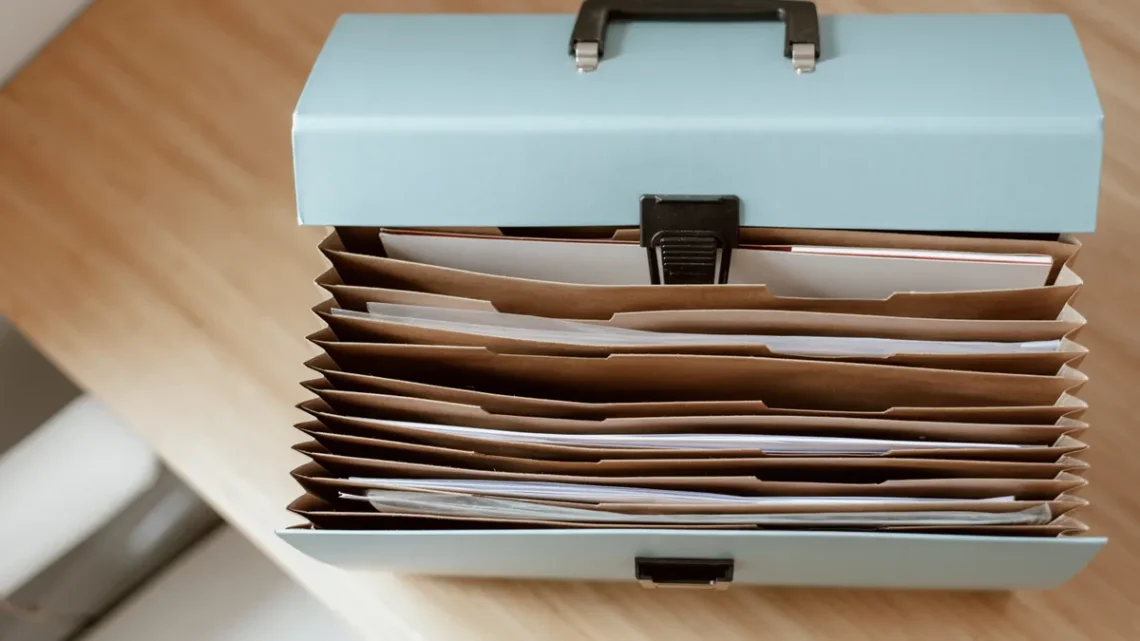
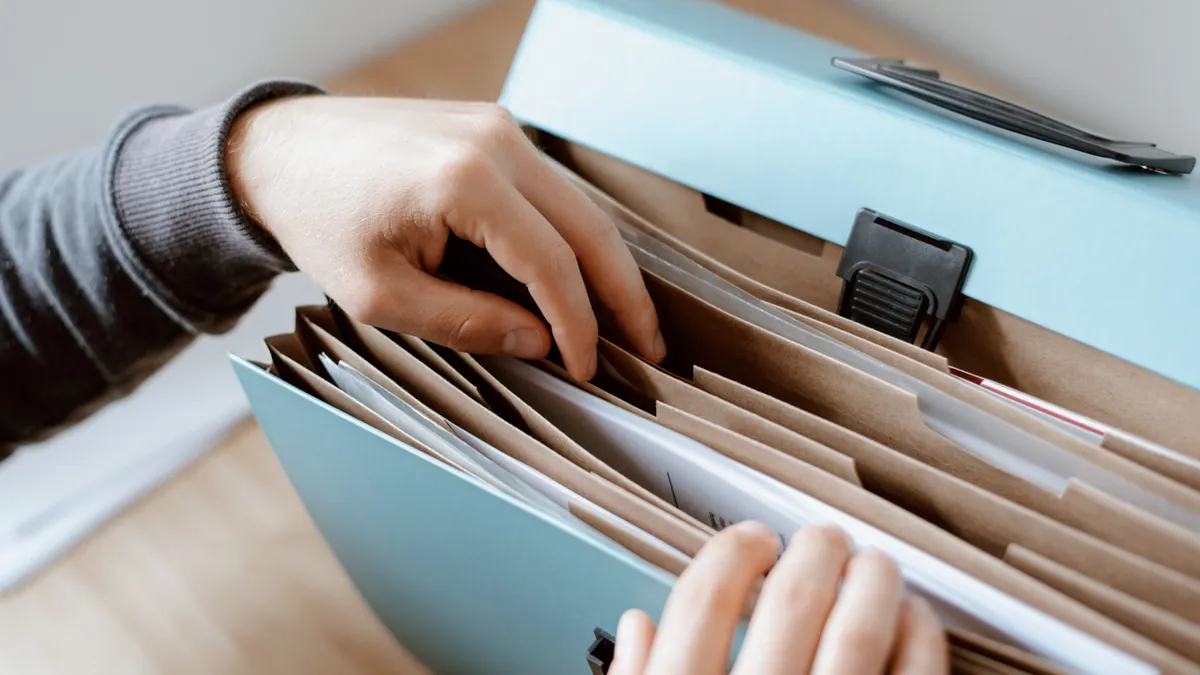
Choose one physical spot for current papers, such as a desktop tray, a binder, or a file box. Keep it close to the device you use for remote work.
Drafted with AI; not yet reviewed by a person.