Last updated: November 05, 2026
Quick Answer: in most remote-work setups, you need 3 things lined up before anyone clicks “sign” — a final file, verified signer identity, and a clear approval path.
Key Takeaways
- Start with a final document, verified signer identity, and an e-signature tool that records completion cleanly.
- PDF is often the practical default for remote signatures because it preserves layout and supports locked fields and audit records.
- Identity checks should confirm the intended signer without turning routine approval into a full identity review.
- The workflow should move from reviewer to signer in one fixed order, with clear roles and one source of truth.
Remote signing in How to Handle Electronic Signatures in Remote Work works when the file format, identity check, and approval path are lined up before anyone clicks “sign.” It is fastest when those steps are clear. It is riskiest when they are not. If you handle those four pieces, signing work documents online becomes routine instead of risky.
What you need before you send or sign anything

You need three things first: a final copy of the document, a way to verify who is signing, and an e-signature tool that can stamp the completed file cleanly. For most remote work, that means a PDF document, an email address tied to the signer, and a platform that logs the signing event.
A PDF matters because it freezes layout. A Word file can shift when opened on different devices, which is why signature lines, initials, and dates sometimes end up in the wrong place. A PDF also makes it easier to lock fields so the signer cannot accidentally edit the body text. If the document is still being negotiated, keep it editable. If it is ready to sign, convert it to PDF first.
The identity check does not need to be theatrical. For a simple internal approval, a secure email link may be enough, but check your organization’s policy and legal requirements first. For higher-stakes contract documents, the workflow may call for a code sent by text, a login, knowledge-based checks, or an ID upload. The key is that the tool should show who signed, when they signed, and what version they signed.
The wrong setup wastes time in predictable ways. A document in .docx format can break on mobile. A missing signer email forces manual back-and-forth. A tool with no audit trail leaves you with a signature image and nothing else. If the document will matter later, that is too thin.
Electronic signature tools are not all alike. Some are built for lightweight approvals; others support multi-step routing, role-based signers, and certificate-style audit logs. Pick the one that matches the document, not the one with the flashiest landing page. The need here is practical, not decorative.
How do I sign work documents online?
You sign work documents online by opening the final PDF in an e-signature tool, confirming your identity, placing the signature in the assigned field, and saving the completed copy with the audit trail attached.
Here is the core process in the order it usually happens:
- Open the final PDF in the signing tool. Use the version marked for signature, not a draft. When this works, the file shows named fields such as signature, date, and initials instead of blank text boxes.
- Check that your name and email match the request. The invitation should identify the sender, the document title, and your role. When this works, you know you are signing the right file and not a forwarded link from the wrong project.
- Complete any identity verification step. This may be a one-time passcode, email confirmation, or login. When this works, the tool continues to the signing screen without asking you to re-enter the document from scratch.
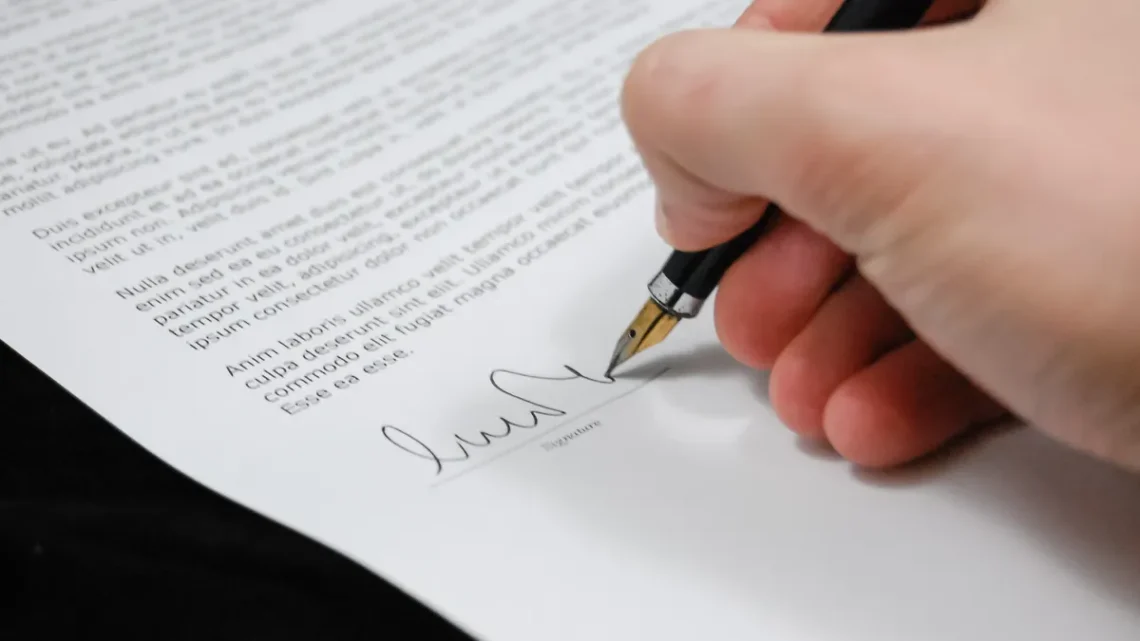
- Place the signature in the marked field. Most tools let you type a name, draw a signature, or insert a stored signature image. When this works, the signature appears inside the assigned box and the document shows the signature as complete.
- Add the date, initials, or title if the workflow asks for them. Many contract documents need more than one field completed. When this works, all required fields turn from blank to finished in the workflow sidebar or progress bar.
- Review the final view before submission. Check the page number, signature block, and any attachments. When this works, the document shows no missing required fields and no clipped text around the signature area.
- Submit and download the signed copy. Save the finished PDF locally and in the shared folder used by your team. When this works, you receive a confirmation screen or email, and the file includes an audit history or completion certificate.
That process sounds simple because it is simple when the document is prepared well. Most problems come from skipping the review step. One missing initial can send the file back through the entire approval workflow. One typo in the signer name can force a reissue. A 30-second check is cheaper than a second round of routing.
If a tool offers “click to sign” with no visible record of who signed what, that may be fine for a casual internal acknowledgment. It is not the right choice for documents you may need to prove later. For remote work, speed matters, but traceability matters more when the file carries obligations.
Which file formats work best for remote signatures?

PDF is the safest default for remote signatures because it preserves layout and usually supports locked fields, initials, and audit records. Other formats can work, but they create more ways for the document to break.
A plain image file or scanned photo is usually the weakest option. It can show a signature, but it does not manage the signing process well. You cannot easily route it to multiple people, track completion, or stop a signer from moving text around. A scanned signature on an image also makes version control harder, because the file can be copied and resent without a clear record.
Word documents can work in some systems, especially when the platform converts them to signing fields automatically. The trade-off is that line spacing, page breaks, and comments can shift depending on the app or device. That is why many teams circulate drafts in Word, then freeze the final version as a PDF before signing.
If the document must be signed by several people, use a format that handles sequential routing cleanly. A 3-person approval chain is easier to manage in a PDF-based workflow because the platform can send the file from signer to signer in order, rather than relying on email threads and manual reminders.
File size matters too. Large PDFs with many embedded images can be slow to load on mobile data or older laptops. If a document is bloated, compress the file without flattening the signature fields. The goal is a file that opens fast and keeps its layout.
The best format is the one that survives the whole journey: draft, review, sign, archive. If a format makes the final copy unstable, it is the wrong one for remote work.
How identity verification should work
Identity verification should confirm that the person signing is the intended signer without turning the process into a passport counter. For everyday remote work, the check is often lighter than for regulated or high-value contract documents, but it still has to be intentional.
The simplest method is access through a known work email address plus a one-time code. That setup is common because it balances convenience and recordkeeping. The sender controls who receives the link, and the platform records the email tied to the signature event. If the signer forwards the link to someone else, the next step should fail or trigger a new verification.
For stronger assurance, a tool may ask for multi-factor authentication, a phone code, or an ID verification step. Some platforms also create a certificate or audit report that records time stamps, IP address, and document hash details. Those records do not make a signature magical, but they do create a better trail if the file is questioned later.
Do not confuse identity verification with full legal vetting. A platform can show that an email address was used at 2:14 p.m. on a specific PDF, but it does not explain the contract terms or decide whether the agreement is wise. That separation matters. The signature system handles proof of signing; the business team handles whether the document should be signed at all.
This is where a generic article often goes wrong: it talks only about the “sign” button and ignores the proof behind it. In remote work, the proof is the point. A signature that cannot be tied to a real process is just an image in a box.
For more structure on the broader readiness side of remote work, the hub page on senior remote work readiness can sit above this topic and keep the workflow pieces organized.
How should the approval workflow be set up?
The approval workflow should move the document from reviewer to signer in a fixed order, with clear roles and one source of truth for the final copy. That prevents version drift and stops people from signing the wrong draft.
A clean workflow usually has four roles: drafter, reviewer, signer, and archivist. The drafter prepares the PDF. The reviewer checks names, dates, and field placement. The signer completes the signature. The archivist stores the final version in the correct folder with the audit trail.
Sequential routing is best when one signature depends on another. For example, a manager may need to approve a contract document before the employee signs it, or legal may need to review it before either party receives a copy. Parallel routing works when two people can sign independently, such as co-authors or multiple witnesses. Choose the route that matches the real approval path, not the one the software suggests by default.
Set deadlines inside the tool if it supports them. A 48-hour or 72-hour reminder cycle keeps documents moving without constant manual follow-up. If the platform cannot send reminders, assign one person to check status each day. The cost of silence is delay, and delay is how signing tasks get buried under email.
A good workflow also reduces the chance of accidental edits. Lock the body of the PDF once the approval round begins. Leave only the signature fields open. That way, the signer cannot change a sentence while trying to complete a date field. It sounds minor until one altered line creates a mismatch between the version that was reviewed and the version that was signed.
The fastest workflow is not the one with the fewest clicks. It is the one that makes the right action easy and the wrong action hard.
How should the signed file be delivered and stored?
The signed file should be delivered as a final PDF with a visible completion record and stored in at least two places: the team system of record and the signer’s own archive. That keeps the document usable after the original email thread disappears.
After the signature is complete, download the final copy immediately. Many platforms also send an email with the signed file attached or linked. Save both the PDF and any certificate or audit report that comes with it. The PDF is the working record; the audit report is the proof behind it. If a later dispute or internal review arises, both matter.
Use a consistent naming pattern. A name like ProjectName_EmployeeName_Signed_2026-10.pdf is easier to find than final final signed version 3.pdf. The exact date format can vary, but the file name should tell a human what the document is without opening it. That saves time in shared drives, cloud folders, and email archives.
Store the document where access is controlled. A private folder with version history is better than a public link floating through chat. If the document contains personal data or confidential business terms, limit who can view it and avoid sending the PDF as an open attachment to large distribution lists. Secure delivery is not only about encryption jargon; it is about not handing the file to people who do not need it.
A common mistake is assuming the signing platform is the archive. It is not. Platforms change, accounts expire, and exports get lost. The safer habit is to export the signed copy the same day and place it in your normal records system.
If the document is important enough to sign, it is important enough to file properly.
Common mistakes that slow remote signing
The most common mistake is sending a draft instead of the final PDF. That costs time because someone has to reject or resign the file. The fix is simple: freeze the document before routing it.
Another mistake is leaving the signer field unlabeled. If a person cannot tell where to sign, they may add text in the wrong place or miss a required field entirely. Label each field clearly and keep one signature block per required signer.
A third mistake is using a signature image with no audit trail. That can be acceptable for informal acknowledgments, but it is a weak choice for contract documents that need a clean record. Use a real e-signature tool when the document may need to be defended later.
A fourth mistake is routing the file by email attachment when the document has multiple signers. That creates version confusion. One person replies to an older PDF, another signs a newer one, and nobody is sure which file is final. Use a platform with tracked routing when more than one person must approve.
The last mistake is keeping the signed file only in the signing app. That is a storage gamble. Export it, rename it, and file it where the team keeps records. A 2-minute housekeeping step can prevent hours of hunting later.
Electronic signatures are useful because they make remote work faster without turning records into guesswork. Used carefully, they give you a signed PDF, a traceable identity event, and a clean approval path. Used carelessly, they leave you with a file that looks signed but is hard to trust.
What is an electronic signature?
An electronic signature is a digital method of showing intent to sign a document. It can be a typed name, a drawn signature, a click-to-sign action, or another approved electronic mark inside a signing system. The important part is not the shape of the mark; it is the surrounding record that ties it to the signer and the document.
How do I sign work documents online?
You sign work documents online by opening the final file in an e-signature tool, confirming your identity, filling the assigned signature field, and saving the completed PDF. The best result is a signed copy that includes the audit trail or completion certificate, so the signing event is easy to document later.
Are electronic signatures legally valid?
Electronic signatures can be legally valid, but the rules depend on the jurisdiction, the document type, and how the signature was captured. For important employment, contract, or compliance documents, the safe move is to check the specific rules that apply and, if needed, get professional advice before relying on the signature alone.
Drafted with AI; not yet reviewed by a person.